
Friday, November 8, 2013

CryptoLocker Virus Holds your Important Documents for Ransom


Have you heard of the CryptoLocker Virus yet? If not, be sure to read on!

The CryptoLocker Virus is a form of 'ransomware;' which is a type of malware which restricts access to the Microsoft Windows-running computer that it infects, and demands a ransom paid to the creator of the malware in order for the restriction to be removed.

In the case of the CryptoLocker Virus, it doesn't just restrict access to the computer system. Once downloaded, this ransomware installs itself in your 'Documents and Settings' folder. It then scans the hard drive for different file types- including .doc, .xls, .ppt, .pst, .dwg, .rtf, .dbf, .psd .jpg, .raw, and .pdf- and then encrypts them (makes it so you cannot access them without the proper key).


After encrypting your files, it displays a CryptoLocker payment screen that tells you to send a ransom of usually $300 in order to decrypt the files. This screen will also display a timer stating that you have around 100 hours to pay the ransom or it will delete your key and you will not have any way to get your files back! This ransom must be paid using MoneyPak vouchers or Bitcoins. Once you send the payment and it is verified, the program will decrypt the files that it encrypted.


How can my computer can get infected by CryptoLocker?
1) Via an email attachment- usually looks like an email from a respected company like BBB or FedEx, UPS. For example, you receive a tracking email from a shipping company you do business with. Attached to the email is a .zip file. Opening the attachment launches a virus that finds and encrypts all files you have access to — including those located on any attached drives or mapped network drives.

2) You browse a malicious website that exploits vulnerabilities in an out-of-date version of Java.

3) You’re tricked into downloading a malicious video driver or codec file.

What should I do when I discover my computer is infected with CryptoLocker?
When you discover that your computer is infected with CryptoLocker, the first thing you should do is disconnect it from your wireless or wired network. This will prevent it from further encrypting any files. Some people have reported that once the network connection is disconnected, it will display the CryptoLocker screen.

How do I remove the virus from my computer?
Your antivirus software may remove the virus, however, your files will still be encrypted. Recent versions of CryptoLocker will now set your Windows wallpaper to a message that contains a link to a decryption tool that you can download in case this happens. In some cases, people have resorted to paying the ransom to retrieve their files. Some did receive the key and regained access to their files, but this is a very risky option. Your best bet is to recover your system from a previous system backup.


How can I prevent the CryptoLocker Virus from infecting my computer?
1)If you get any emails with suspicious attachments, DO NOT open the attachments or click any links in the email messages. 

2)Steer clear of any suspicious websites. Especially ones that may ask you to download a Java update.

3)Make sure you keep complete and recent backups of your system. If you have a small business with networked PCs, you should have automated workstation backups enabled, in addition to server backups.

4)Implement Windows’ Software Restriction Policies rule. This can block CryptoLocker from launching its payload in your computer system. If you need help implementing, contact a BizTech Solution Advisor at 419.539.6922 or via email for more information about this method.
We know your files are important and, very likely, essential to your business. Don't hesitate to call or email us for more information about this virus and how to prevent this, and other disasters from affecting your data.


*Information gathered from our Techs and http://windowssecrets.com/top-story/cryptolocker-a-particularly-pernicious-virus/

Wednesday, November 6, 2013

Toledo, Ohio IT Services- Network Administration,Computer Repair, Printer Repair, Ink & Toner, Disaster Recovery

Whether you’re a small business or a larger organization in the Toledo area, BizTech has the IT solutions to fit your business needs. From Proactive Managed IT Services and Virtualization, to Printer Toner and Computer Repair, we’re here to help you keep your business running as hard and as fast as possible.

BizTech has your back with solutions such as:

  • UnlimITed Support Services – 24/7 managed IT services will minimize your technology problems at a fixed monthly rate.
  • On-Demand IT Services – We'll fix your technology problems at our hourly rate.
  • Network Infrastructure – From deployment to administration, we'll keep your computer network efficient and secure.
  • Virtualization Services – With products from Citrix and Microsoft, we can lower your energy costs and make work something you do, not somewhere you have to be.
  • Business Continuity – Network backups and database recovery will keep your company from losing profits due to network failure.
  • Mobile BI – Access your business data while on the go with smartphone and tablet device integration.
  • Printer Services – We’ll keep your printers, copiers & fax machines running with regular maintenance and repairs.
  • Ink and Toner Supplies – Order your ink and toner from us and get free delivery in the Toledo area.
  • Computer Hardware – We’ve partnered with top manufacturers, like Dell and HP, plus national parts distributors. We remove the hassles of dealing with vendors, while offering competitive prices.
Visit our website at http://www.gobiztech.com/ITServices.aspx for more information about our Northwest Ohio IT Services.

Friday, October 18, 2013

Make your computer start up faster

Does your computer take too long to start up?

If your PC is taking too long to boot, it’s probably because you have too many programs running at startup. Reducing the number of programs the run at startup is an easy fix, and it will make your PC launch noticeably faster.  To change the items running at startup:

1.      Go to Run using the hotkey Windows key + R

2.      Type msconfig

3.      A small window will appear- select the Startup tab

4.      From here you will be able to turn off many startup programs, which can shave several seconds (or minutes) off of your boot time. (Note: Windows 8 has moved this functionality to the Task Manager).


**Be sure to research what you are thinking of turning off, as some processes might be needed by third party programs or drivers you have installed**

Monday, September 30, 2013

Keyboard Tips - Web Browser Shortcuts

Ctrl + N
Open a new window
Ctrl + T
Open a new tab (if your browser supports tabs)
Ctrl + W
Close the current window/tab
Ctrl + R
Refresh
Esc
Stop
Alt +
Back
Alt +
Forward
PageUp
Move up a page
PageDown
Move down a page
Alt + Home
Go to your homepage
Alt + D
Move focus to the address bar to type in a URL
Ctrl + Enter
Add "http://www." and ".com" around an address
MiddleClick
Middle-clicking a tab will close it, even if it's not the active tab

Friday, July 19, 2013

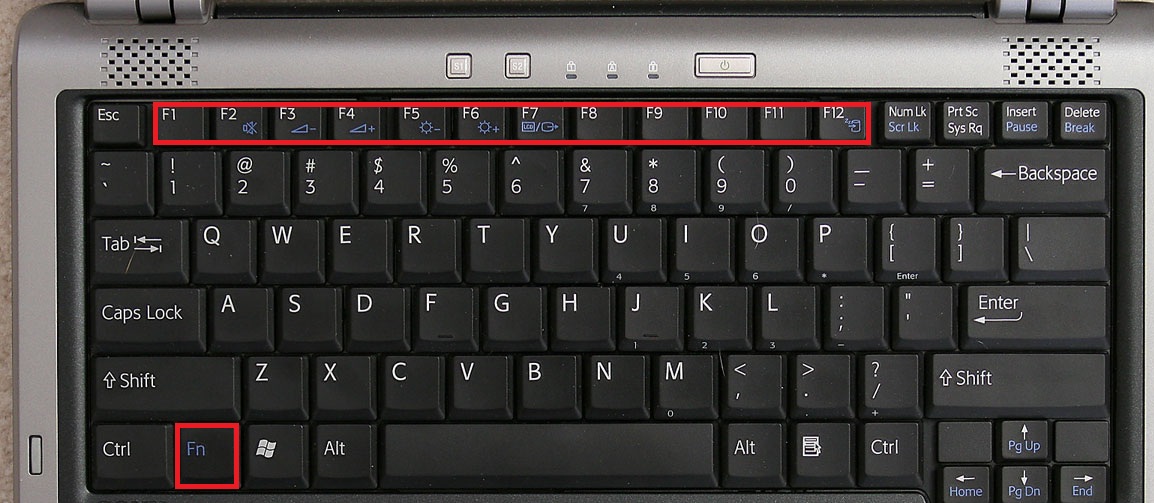
Keyboard Function Keys F1 - F12 - What are they, and how can I use them?

Commonly referred to as the 'function keys,' on a typical keyboard, F1 through F12 may have a variety of different uses in your work day, or no use at all. The keys will operate differently depending on the installed operating system and the software program currently open.  When the function keys are combined with the ALT, Windows or CTRL key, they will have even more uses, i.e. ALT+F4.


Below is a list of some of the common functions of the function keys. Remember, not all programs support function keys and may perform different tasks than those mentioned below. 

F1: 
  • Almost always used as the help key, almost every program will open the help screen when this key is pressed. 
  • Enter CMOS Setup
  • Windows Key + F1 would open the Microsoft Windows help and support center. 
  • Open the Task Pane. 
F2:
  • Renames a highlighted icon, file, or folder in all versions of Windows. 
  • Alt + Ctrl + F2 opens document window in Microsoft Word. 
  • Ctrl + F2 displays the print preview window in Microsoft Word. 
  • Quickly rename a selected file or folder. 
  • Enter CMOS Setup. 
F3:
  • Often opens a search feature for many programs, including Microsoft Windows when in the Windows Desktop. 
  • In MS-DOS or Windows command line, F3 will repeat the last command. 
  • Shift + F3 will change the text in Microsoft Word from upper to lower case or a capital letter at the beginning of every word. 
  • Windows Key + F3 opens the Advanced find window in Microsoft Outlook. 
  • Open Mission Control on an Apple computer running Mac OS X. 
F4:
  • Open find window in Windows 95 to XP. 
  • Open the address bar in Windows Explorer and Internet Explorer. 
  • Repeat the last action performed (Word 2000+) 
  • Alt + F4 will close the program window currently active in Microsoft Windows. 
  • Ctrl + F4 will close the open window within the current active window in Microsoft Windows. 
F5:
  • In all modern Internet browsers pressing F5 will refresh or reload the page or document window. 
  • Open the find, replace, and go to window in Microsoft Word. 
  • Starts a slideshow in PowerPoint. 
F6:
  • Move the cursor to the Address bar in Internet Explorer, Mozilla Firefox, and most other Internet browsers. 
  • Ctrl + Shift + F6 opens to another open Microsoft Word document. 
F7:
  • Commonly used to spell check and grammar check a document in Microsoft programs such as Microsoft Word, Outlook, etc. 
  • Shift + F7 runs a Thesaurus check on the word highlighted. 
  • Turns on Caret browsing in Mozilla Firefox. 
F8: 
  • Function key used to enter the Windows startup menu, commonly used to access Windows Safe Mode. 
F9:
  • Opens the Measurements toolbar in Quark 5.0. 
  • With Mac OS 10.3 or later shows all open Windows. 
  • Using the Fn key and F9 at the same time will open Mission Control on an Apple computer running Mac OS X. 
F10:
  • In Microsoft Windows activates the menu bar of an open application. 
  • Shift + F10 is the same as right-clicking on a highlighted icon, file, or Internet link. 
  • Enter CMOS Setup. 
  • With Mac OS 10.3 or later shows all open Windows for active program. 
F11:
  • Full-screen mode in all modern Internet browsers. 
  • With Mac OS 10.4 or later hides all open windows and shows the Desktop. 
F12:
  • Open the 'Save as' window in Microsoft Word. 
  • Shift + F12 saves a Microsoft Word document. 
  • Ctrl + Shift + F12 prints a document in Microsoft Word. 
  • Preview a page in Microsoft Expression Web 
  • With an Apple running Mac OS 10.4 or later, F12 will show or hide the Dashboard.


These tips were originally found at http://www.computerhope.com/.

Monday, July 15, 2013

Register for a chance to win Toledo Mud Hens Tickets!


Is your head in the clouds when it comes to using and understanding new technology for your business? 

Join BizTech & CISP for an enlightening business and technology seminar focusing on Cloud Computing and Business Continuity. This 2-hour knowledge-share session will combine advanced concepts and technical background on the business initiatives and evolving services that are driving the ‘Cloud’ movement. We will explore the benefits, challenges and potential pitfalls of leveraging new options for working outside of the boundaries of the traditional office space. You will come away with information that is relative to your company’s decision makers and technology users, and will help you as you seek new ways for your business to meet objectives.


Immediately following the seminar- and included in your registration fee- is a Networking Event, where you are invited to join BizTech, CISP and local business persons for a buffet-style dinner and open bar.
When: Tuesday August 20, 2013
Time: 4:00PM
Where: Hilton Garden Inn Toledo/Perrysburg Conference Center, Perrysburg, Ohio

Register by July 31, 2013 for a chance to win four tickets to a Toledo Mud Hens game, including an exclusive pass to the BirdCage Bar & Grill on the Executive Level! 

Register today!
For event details, go to http://www.gobiztech.com/events/Head-In-The-Clouds-Aug-2013.aspx

Friday, June 7, 2013

Toledo / Northwest Ohio Business Technology Seminar & Networking Event

Head in the Clouds.. A Business Technology Seminar in Toledo, OH


Is your head in the clouds when it comes to using and understanding new technology for your business? 

Join BizTech for an educational business and technology seminar focusing on Cloud Computing and Business Continuity. Stay after the seminar for an evening of food, drinks and networking with area business persons and BizTech’s team of technology experts. 

When:  Tuesday August 20, 2013
Time:   4:00PM
Where: Hilton Garden Inn Toledo/Perrysburg Conference Center
            Perrysburg, Ohio


Event Details:
Emerging and maturing virtual technologies are enabling businesses to meet objectives in unique and exciting ways. Take a deep dive with us into the inner workings of the technology driving the Cloud movement, and explore the higher level concepts and approaches to integrating consumer products into the business space for storage, application services, and server computing.

This 2-hour business and technology session presented by Bill Wass, BizTech’s Technical Operations Manager, will explore the benefits, challenges, and potential pitfalls of leveraging new options for Cloud Computing and Business Continuity. You will gain knowledge relevant to both users and business decision makers. 

You will also meet the BizTech Information Technology Services Team, and hear from a special guest speaker from CISP, a Toledo-based Tier IV Datacenter specializing in Telecommunications, Cloud, and Data Continuity solutions for the business market.

Immediately following the seminar, join BizTech, CISP and your peers for a Networking Event, which includes a buffet-style dinner and open bar.

Friday, May 17, 2013

What is the FBI Virus, anyways?


The ‘FBI Virus’ is going around.  We’ve been getting a lot of calls from clients about what it is, and how to get rid of it.  When a computer gets infected with this 'ransomware' (a form of malware), usually a screen will pop up with the FBI logo and will say that your computer has been involved in illegal activity.  Sometimes it will ask you pay a penalty fine to unlock your computer.  This is totally bogus!  Do NOT enter your credit card information.

This malware completely locks up your computer screen, so that you can’t get out of the fake FBI screen.  Once you have the virus, it has likely already disabled your anti-virus software, so cleanup often involves a Safe Mode scan with special anti-malware utilities. In some more series cases, it is necessary to remove the hard drive from the infected computer for offline drive scanning by a second computer setup with anti-malware utilities.

Below are screenshots of three of the different fake FBI virus screens going around..


Please call us at 419.539.6922 if you need help removing this malware.

Wednesday, April 17, 2013

Tech Tips - Get rid of those pesky cached email addresses in Outlook


Microsoft Outlook has a handy feature that caches the email addresses you type, and offers them up as you type new messages.  This can, at times, be problematic.  If you’ve mistyped an address, Outlook may still cache the incorrect address and provide it the next time you start typing the address.  Also, if there’s an address that you rarely use, and it comes up before a frequently used address, it may be helpful to remove the seldom used address from the cache.

This task is very easily accomplished, but also easily overlooked.  As you begin typing the address in a new message, Outlook will display the list of cached addresses it is suggesting.  Simply click on the “X” next to the name and it is removed from the cache.  Presto!

Thinking of upgrading to Microsoft Office 2013? Read this first.


Be aware that your computer may not run Office 2013
Office 2013 does not work with Windows XP or Vista.  Also, if you opt for Office 365, you can only download the latest version, which is 2013.  If you are one of the many businesses and personal users still using Windows XP or Vista, you should pass on both Office 2013 and 365 until you upgrade to a newer version of Windows.

Know that Office 2013 is not compatible with Exchange 2003
While it is typical of Microsoft to only provide support for the two most recent product versions, this one is a source of frustration for many businesses.  Many companies were not aware of this incompatibility until upgrading to Office 2013, only to find that they couldn’t use Outlook.  If you are planning to upgrade your PCs and Office software, you will need to budget for an upgrade to Exchange 2010 or 2013.