Showing posts with label tech tips. Show all posts

Monday, April 6, 2015

CryptoWall Virus: Don't be a victim


Do you remember the CryptoLocker malware that was going around starting in 2013?  In recent months, there has been a similar ransomware that has been infecting computers...CryptoWall.

Like the CryptoLocker virus, CryptoWall is a form of 'ransomware;' which is a type of malware which restricts access to the Microsoft Windows-running computer that it infects, and demands a ransom paid to the creator of the malware in order for the restriction to be removed. 
 
How are computers being infected?
CryptoWall is a Trojan horse, which means that the virus is disguised as a non-threatening application or file.  This virus is typically spread through email as an attachment, but is also spread by infected websites via 'drive-by download.' 

How will I know if my computer is infected?
There are two tell-tale signs that indicate CryptoWall has infected your computer.
  1. When attempting to open certain files, such as .doc, .xls or .pdf, for example, the files are launched with the correct program; however, data may be garbled or not properly displayed. Additionally, an error message may be accompanied when trying to open infected files.
  2. The most common indication will be the appearance of three files at the root of every directory that contains files that were encrypted by CryptoWall.
    • DECRYPT_INSTRUCTION.txt
    • DECRYPT_INSTRUCTION.html
    • DECRYPT_INSTRUCTION.url
Clicking on any of these files left from CryptoWall's infection will lead you to step-by-step instructions for paying the ransom. A file will have the ransom countdown and how much money they are requesting. Typically, the ransom amount begins at $500, and the countdown timer gives you three days to send payment.

After the timer has reached zero, the caption will change. The new amount requested will double to $1,000, and the timer will provide a cutoff date and time. Usually, the time frame is about one week, and it will tell you that if payment is not received before the cutoff time, the remote server housing the private key and decryption application to decrypt your files will be automatically deleted, making your files unrecoverable.
 
What should I do if my computer gets infected with CryptoWall?
After confirming that your computer is infected, you have to decide if you want to pay the ransom to get your data back, or if you don't. If you decide to pay the ransom, you have to do so in Bitcoins.

If you don't pay the ransom, you can attempt to recover your files if you have some sort of backup in place. This may or may not work. We recommend working with a skilled IT Technician to help you with this.
How can I protect my computers from the CryptoWall virus? 
You should ALWAYS have an active antivirus application installed with the latest virus definition files.  This should include a malware scanner.  
 
Of the dozens of clients who have come to us with the CryptoWall infection, only ones who had a good, recent data backup had a successful comeback from the virus.  
 
Practice safe internet- don't visit questionable sites, never click links within emails from unknown senders, and only download add-ons from trusted websites. 


Contact the experts at BizTech if you are having issues with malware, or if you are interested in the benefits of online data backups. Call us at 419.539.6922 or email info@gobiztech.com

Wednesday, February 25, 2015

Troubleshooting your wireless internet connection

These days, a notebook without an internet connection is like a bicycle without pedals. You can still use it, but you won’t get very far. That’s why it’s all the more frustrating when you lose your wireless internet connection and your IT department or helpful officemate aren’t there to provide a quick fix. 

A savvy user, however, doesn’t have to be at the mercy of other people’s schedules. With a few simple troubleshooting tips—and a basic understanding of how your wireless network is set up—you can easily take care of many common issues yourself and quickly return to peak productivity. Here’s how: 

Looking for trouble 
Fixing your wireless internet connection is in large part a process of elimination. You need to check each link in the chain that takes you online and determine which link is—or is not—causing the issue. For most environments, you’ll find the problem in one of these four areas: 

1. The notebook  
The software, network card, and settings installed on your notebook PC can be the primary sources of issues in connecting to the internet.

How to fix it:

  • Check that wireless access is enabled:
    • Windows 7: Go to the Control Panel, select Networking and Internet, select Network and Sharing Center, select Change Adapter Settings, right-click on the icon for Wireless Connection, and click Enable.
    • Windows 8: Bring up the Charms Bar by swiping in from the right, open Settings and click on the Wi-Fi symbol, then switch wireless to the “on” position.
  • Try Windows Network Diagnostics 
    • Windows 7: To open the Network troubleshooter from network-related error messages, click Diagnose or Troubleshoot. Or, click on the Troubleshoot Problems option from the Network and Sharing Center.
    • Windows 8: From the Start screen, enter “troubleshooting” to open the Search charm, and then select troubleshooting from the search results. Click on Network and Internet, and then click Internet Connections.

2. The wireless router
Routers send and receive the signals from your notebook PC that allow you to go wireless—when they’re working correctly. Note that many modern modems actually include a router and modem in a single device.

How to fix it
:

  • Try moving your notebook closer to the router. Walls or other signals may be interfering with the connection and a different location may fix the problem.
  • Try resetting the router. Unplug the router and wait 30 seconds before plugging it back in to make sure it fully resets.
  • Bypass the router. If you plug in your notebook directly to the modem with an Ethernet cable and can access the internet, you’ve isolated the problem to the router and can further diagnose the issue from there. Try updating the notebook wireless drivers and then try updating the router firmware. Finally, try resetting the router to its factory settings.
  • Check for overheating. If the router drops the internet connection regularly, one problem may be that the router is overheating. Make sure that the router has sufficient airflow and is not in an excessively hot location. 

3. The modem
The modem is the device that communicates between you and the Internet Service Provider (ISP) outside of your home or office. The modem may not be communicating correctly with your notebook or with your ISP.

How to fix it:

  • Reset the modem. Unplug the modem and wait 30 seconds before plugging it back in to make sure it fully resets.
  • Ensure the cables are secure. Check the cables connecting the modem to both the router and the internet source (for example, the coaxial cable for a cable modem) are secure.

4. The Internet Service Provider
The ISP is the commercial service the modem talks to outside of your office. Regional outages can disrupt not just your internet access, but also the entire neighborhood’s connection.

How to fix it:

  • Check your browser. Public or guest internet connections—such as those at hotels or airports—sometimes require you to accept their terms of agreement before enabling access. To enable the connection, open up a new browser window after connecting to the wireless network. You will be automatically be directed to a page with the service agreement, where you can click to accept the terms and begin browsing. Remember: always use caution when browsing on public networks, and avoid visiting sensitive sites.
  • Call your provider. Your ISP’s technical support will be able to let you know if the internet outage is generalized or specific to your home or office. If you’ve followed the other troubleshooting steps in this article and there isn’t a generalized outage, you may need to schedule a maintenance visit to restore service.
There are now more mobile-connected devices in the world than there are people [3] and each one of those devices will probably run into trouble with its wireless internet connection sooner or later. With a bit of know-how and the right approach, you can turn many of the most common connection problems from show-stopping roadblocks into little more than minor road bumps. A little knowledge can go a long way.


Source article- HP blog: http://www8.hp.com/h30458/us/us/smb/Areyoufeelingdisconnected_1463815.html

Wednesday, October 22, 2014

Make your smartphone battery last longer


We've all dealt with it... a smartphone battery that dies too soon. Here are some tips on how to conserve your smartphone battery. 

Dim the screen.
Screen lighting consumes a lot of battery power. Most phones have an automatic display brightness control, but you really should adjust brightness manually to save energy. Displays are often much brighter than necessary, and you can really add to the battery life by using only as much brightness as you need.

Turn off vibrate.
Unless you are waiting for a very important call, and you need your ringer on silent, there is no real need for it.

Turn off Bluetooth.
Only turn it on when you need to connect to other devices.

Only use 4G/LTE connections when you need to.

4G /LTE  uses quite a bit of power. If you can use a Wi-Fi hotspot, save energy (and maybe money) by turning your data connection off.

Limit use of GPS location services.
A lot of apps constantly checking your location can be a power drain.  You really only need it turned on for your Maps apps. Also, leaving your location services on is kind of a privacy issue...do your social media followers really need to know where you are?

Set your phone to manually refresh your email.
Instead of setting your email to refresh automatically every 15 minutes or whatever interval is normally set, check your email yourself.

Turn off apps running in background
It’s easy to end up with nearly every app you have running in the background. Not only do they consume power, but they can use enough memory to slow down your device. Turn them off when you are finished.


We can help! Call us at 419.539.6922.

Monday, August 18, 2014

Phishing and Vishing and Smishing ...oh my!


Phishing is the slang term for using email to get people to divulge their personal information so it can be used to steal their identity.  Con artists use phishing emails to literally 'fish' for information that they can use to illegally access bank accounts and open credit card accounts.  In the past this scam was conducted over the phone - that's where the "ph" in phishing comes from.  

Here are some questions to ask if you think you have received a phishing attack:

  1. Do you know the sender of the email? If yes, still be cautious before clicking a link. If no, do not click any links.
  2. Are there any attachments in the email? If so, is the attachment an executable (a file with the extension .exe, .bat, .com, .vbs, .reg, .msi, .pif, .pl, .php)? If so, do not click on the attachment. Even if the file does not contain one of the above mentioned extensions, be cautious about opening it. Contact the sender to verify its contents.
  3. Does the email request personal information? If so, do not reply.
  4. Does the email contain grammatical errors? If so, be suspicious.
  5. If you have a relationship with the company, are they addressing you by name?
  6. Have you checked the link? Mouse over the link and check the URL. Does it look legitimate or does it look like it will take you to a different Web site?
You can use these same questions if you receive a vishing or smishing attack....

Vishing scams work like this: You receive an email that appears to be from your bank and it informs you that you need to call a specific phone number to re-confirm your account information.  The number they provide is, of course, bogus and when you call them and give them your account information, they simply use it to access your accounts illegally and take your money.  So instead of using a fake website to 'fish for information' they are using a fake phone number to fish for your voice.  Thus:  vishing.

Smishing scams are when con artists once again try to contact you and try to trick you into giving them your personal information - but this time they initiate the contact using a text message on your phone. Originally text messages were know as 'Short Message Service' or SMS and it's from that that we get the sm in smishing. 
  • In many cases, the smishing message will come from a '5000' number instead of displaying an actual phone number. This usually indicates the SMS message was sent via email to the cell phone, and not sent from another cell phone.  Do not respond to smishing messages.

Wednesday, June 25, 2014

The best keyboard shortcut you probably aren't using

Have you ever scrolled and scrolled through, a word document, excel file, email inbox or a webpage looking for a particular word or entry? Nevermore!

Use the “Find” shortcut instead: CTRL+F. When you have a window open and want to find something, press CTRL+F and a “Find” window appears. Now, type part or all of a word or number that you are looking for, and press Enter. The window will automatically scroll to the keyword you entered. Even better- as you are typing, it will find the word and highlight it! 

*Note- if you do this in Outlook, CTRL+F will open a window to forward the email in your preview screen, not open a find window.

Monday, April 21, 2014

Are you using strong passwords?

If you answered ‘No’ or ‘I’m not sure,’ check out this useful password generator tool we found. 


PASSWORD Boy is a free password generator. It allows you to create random passwords that are highly secure and extremely difficult to guess due to an optional combination of lower and upper case letters, numbers and symbols.  Their website allows you to download the utility to your desktop, or you can use the online version.  This password tool can produce all 3 types of “strong” passwords (Pass Phrase, Pronounceable/Phonetic, and Random/Strong).

Wednesday, March 26, 2014

Tech Tip - Undo closed browser tabs


undo close browser tab graphic

Have you ever mistakenly closed a tab you didn't want to close in your browser? 

Did you know that you can undo that?  Just press CTRL + Shift + T to undo a closed tab.  You can even press this combination more than once to undo multiple closed tabs!  This feature works in all major browsers including Google Chrome, Mozilla Firefox, Microsoft Internet Explorer, and Opera.

Monday, February 10, 2014

Tech Tips - Using the Text-to-Columns wizard in Microsoft Excel


Change dates like 20140219 to one Excel can "understand"
Suppose you are looking at a worksheet which contains dates which can't be formatted as "real" dates because of their structure:


Select the date(s), and use Data tab, Text-to-Columns, [Excel2003:Data|Text to Columns]


Which brings up the Text-to-Columns wizard:


Even though the dates are fixed width, in this case you can simply click "Next" twice.

In step 3 of wizard Select Date, YMD:


If you click Finish now, the result will replace the dates. You can select another destination cell:


Here's the result:


Source: Microsoft: http://office.microsoft.com/en-us/help/six-great-tips-from-this-isnt-excel-its-magic-by-bob-umlas-HA010282444.aspx

Friday, November 22, 2013

Malware 101

According to Kapersky Labs, more than 33 percent of malware attacks cost businesses their hard-earned money. That amounts to billions of dollars in lost business revenue, downtime and repair costs that are attributed to malware infections every year.

What is Malware?
Malware exists in several forms; including viruses, ransomware, worms, trojan horses, rootkits,

keyloggers, dialers, spyware, adware, malicious browser helper objects, and rogue security software that either presents itself your antivirus control, or disables your antivirus software. Malware has three potential objectives: destruction of data, data collection and transmission, or nuisance and interruption.

Recently, the CryptoLocker Virus, a type of ransomware, has been in the news. This virus installs itself on your computer and encrypts your files so you can’t access them without the proper key. Then, a payment screen pops up, asking you to pay a ransom of $300 for the ‘key’ to decrypt your files! For more information about the CryptoLocker Virus, go to http://gobiztech.blogspot.com/2013/11/cryptolocker-virus-holds-your-important.html.


How to Protect Yourself…

8 Malware Prevention Best Practices

1. Don’t underestimate the importance of backing up your important data.

2.
Install a firewall, if you don’t already use one, as the first line of defense against inbound attacks.

3. Make sure you are using good antivirus software that is constantly updated.

4. 
Keep your operating system (e.g. Windows) updated with current security updates and patches. Did you know XP is going “End of Life”?

5. Use a more secure web browser (Windows Explorer is the most exploited).

6. Use caution when downloading files from the internet- especially browser add-ons and screensavers.

7. Don’t open email attachments or click links unless you know what they are.

8. 
Never send personal information through an email, even if it looks like it is from a trusted source. You risk identifying yourself as a target.

Friday, November 8, 2013

CryptoLocker Virus Holds your Important Documents for Ransom


Have you heard of the CryptoLocker Virus yet? If not, be sure to read on!

The CryptoLocker Virus is a form of 'ransomware;' which is a type of malware which restricts access to the Microsoft Windows-running computer that it infects, and demands a ransom paid to the creator of the malware in order for the restriction to be removed.

In the case of the CryptoLocker Virus, it doesn't just restrict access to the computer system. Once downloaded, this ransomware installs itself in your 'Documents and Settings' folder. It then scans the hard drive for different file types- including .doc, .xls, .ppt, .pst, .dwg, .rtf, .dbf, .psd .jpg, .raw, and .pdf- and then encrypts them (makes it so you cannot access them without the proper key).


After encrypting your files, it displays a CryptoLocker payment screen that tells you to send a ransom of usually $300 in order to decrypt the files. This screen will also display a timer stating that you have around 100 hours to pay the ransom or it will delete your key and you will not have any way to get your files back! This ransom must be paid using MoneyPak vouchers or Bitcoins. Once you send the payment and it is verified, the program will decrypt the files that it encrypted.


How can my computer can get infected by CryptoLocker?
1) Via an email attachment- usually looks like an email from a respected company like BBB or FedEx, UPS. For example, you receive a tracking email from a shipping company you do business with. Attached to the email is a .zip file. Opening the attachment launches a virus that finds and encrypts all files you have access to — including those located on any attached drives or mapped network drives.

2) You browse a malicious website that exploits vulnerabilities in an out-of-date version of Java.

3) You’re tricked into downloading a malicious video driver or codec file.

What should I do when I discover my computer is infected with CryptoLocker?
When you discover that your computer is infected with CryptoLocker, the first thing you should do is disconnect it from your wireless or wired network. This will prevent it from further encrypting any files. Some people have reported that once the network connection is disconnected, it will display the CryptoLocker screen.

How do I remove the virus from my computer?
Your antivirus software may remove the virus, however, your files will still be encrypted. Recent versions of CryptoLocker will now set your Windows wallpaper to a message that contains a link to a decryption tool that you can download in case this happens. In some cases, people have resorted to paying the ransom to retrieve their files. Some did receive the key and regained access to their files, but this is a very risky option. Your best bet is to recover your system from a previous system backup.


How can I prevent the CryptoLocker Virus from infecting my computer?
1)If you get any emails with suspicious attachments, DO NOT open the attachments or click any links in the email messages. 

2)Steer clear of any suspicious websites. Especially ones that may ask you to download a Java update.

3)Make sure you keep complete and recent backups of your system. If you have a small business with networked PCs, you should have automated workstation backups enabled, in addition to server backups.

4)Implement Windows’ Software Restriction Policies rule. This can block CryptoLocker from launching its payload in your computer system. If you need help implementing, contact a BizTech Solution Advisor at 419.539.6922 or via email for more information about this method.
We know your files are important and, very likely, essential to your business. Don't hesitate to call or email us for more information about this virus and how to prevent this, and other disasters from affecting your data.


*Information gathered from our Techs and http://windowssecrets.com/top-story/cryptolocker-a-particularly-pernicious-virus/

Friday, October 18, 2013

Make your computer start up faster

Does your computer take too long to start up?

If your PC is taking too long to boot, it’s probably because you have too many programs running at startup. Reducing the number of programs the run at startup is an easy fix, and it will make your PC launch noticeably faster.  To change the items running at startup:

1.      Go to Run using the hotkey Windows key + R

2.      Type msconfig

3.      A small window will appear- select the Startup tab

4.      From here you will be able to turn off many startup programs, which can shave several seconds (or minutes) off of your boot time. (Note: Windows 8 has moved this functionality to the Task Manager).


**Be sure to research what you are thinking of turning off, as some processes might be needed by third party programs or drivers you have installed**

Monday, September 30, 2013

Keyboard Tips - Web Browser Shortcuts

Ctrl + N
Open a new window
Ctrl + T
Open a new tab (if your browser supports tabs)
Ctrl + W
Close the current window/tab
Ctrl + R
Refresh
Esc
Stop
Alt + ←
Back
Alt + →
Forward
PageUp
Move up a page
PageDown
Move down a page
Alt + Home
Go to your homepage
Alt + D
Move focus to the address bar to type in a URL
Ctrl + Enter
Add "http://www." and ".com" around an address
MiddleClick
Middle-clicking a tab will close it, even if it's not the active tab

Friday, July 19, 2013

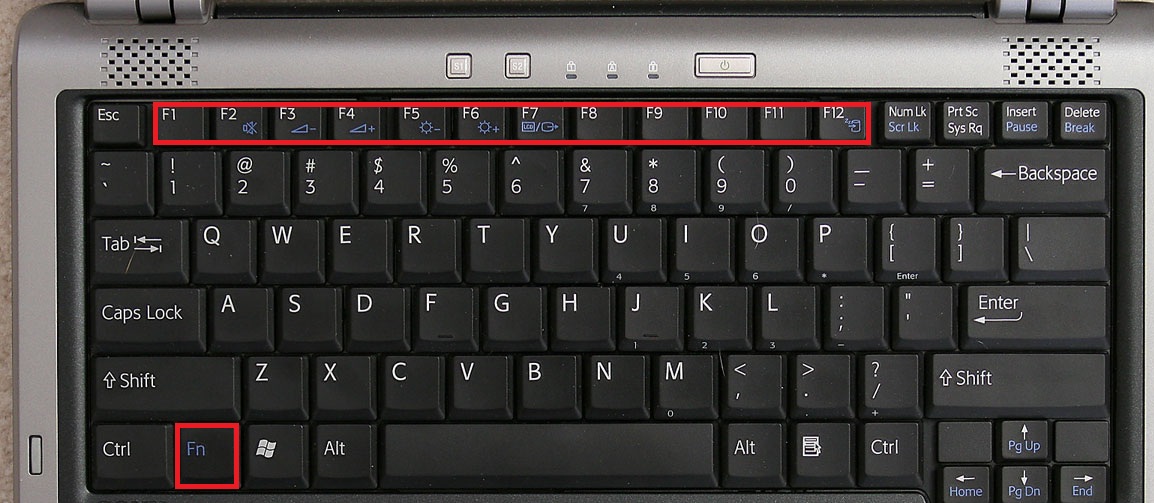
Keyboard Function Keys F1 - F12 - What are they, and how can I use them?

Commonly referred to as the 'function keys,' on a typical keyboard, F1 through F12 may have a variety of different uses in your work day, or no use at all. The keys will operate differently depending on the installed operating system and the software program currently open.  When the function keys are combined with the ALT, Windows or CTRL key, they will have even more uses, i.e. ALT+F4.


Below is a list of some of the common functions of the function keys. Remember, not all programs support function keys and may perform different tasks than those mentioned below. 

F1: 
  • Almost always used as the help key, almost every program will open the help screen when this key is pressed. 
  • Enter CMOS Setup
  • Windows Key + F1 would open the Microsoft Windows help and support center. 
  • Open the Task Pane. 
F2:
  • Renames a highlighted icon, file, or folder in all versions of Windows. 
  • Alt + Ctrl + F2 opens document window in Microsoft Word. 
  • Ctrl + F2 displays the print preview window in Microsoft Word. 
  • Quickly rename a selected file or folder. 
  • Enter CMOS Setup. 
F3:
  • Often opens a search feature for many programs, including Microsoft Windows when in the Windows Desktop. 
  • In MS-DOS or Windows command line, F3 will repeat the last command. 
  • Shift + F3 will change the text in Microsoft Word from upper to lower case or a capital letter at the beginning of every word. 
  • Windows Key + F3 opens the Advanced find window in Microsoft Outlook. 
  • Open Mission Control on an Apple computer running Mac OS X. 
F4:
  • Open find window in Windows 95 to XP. 
  • Open the address bar in Windows Explorer and Internet Explorer. 
  • Repeat the last action performed (Word 2000+) 
  • Alt + F4 will close the program window currently active in Microsoft Windows. 
  • Ctrl + F4 will close the open window within the current active window in Microsoft Windows. 
F5:
  • In all modern Internet browsers pressing F5 will refresh or reload the page or document window. 
  • Open the find, replace, and go to window in Microsoft Word. 
  • Starts a slideshow in PowerPoint. 
F6:
  • Move the cursor to the Address bar in Internet Explorer, Mozilla Firefox, and most other Internet browsers. 
  • Ctrl + Shift + F6 opens to another open Microsoft Word document. 
F7:
  • Commonly used to spell check and grammar check a document in Microsoft programs such as Microsoft Word, Outlook, etc. 
  • Shift + F7 runs a Thesaurus check on the word highlighted. 
  • Turns on Caret browsing in Mozilla Firefox. 
F8: 
  • Function key used to enter the Windows startup menu, commonly used to access Windows Safe Mode. 
F9:
  • Opens the Measurements toolbar in Quark 5.0. 
  • With Mac OS 10.3 or later shows all open Windows. 
  • Using the Fn key and F9 at the same time will open Mission Control on an Apple computer running Mac OS X. 
F10:
  • In Microsoft Windows activates the menu bar of an open application. 
  • Shift + F10 is the same as right-clicking on a highlighted icon, file, or Internet link. 
  • Enter CMOS Setup. 
  • With Mac OS 10.3 or later shows all open Windows for active program. 
F11:
  • Full-screen mode in all modern Internet browsers. 
  • With Mac OS 10.4 or later hides all open windows and shows the Desktop. 
F12:
  • Open the 'Save as' window in Microsoft Word. 
  • Shift + F12 saves a Microsoft Word document. 
  • Ctrl + Shift + F12 prints a document in Microsoft Word. 
  • Preview a page in Microsoft Expression Web 
  • With an Apple running Mac OS 10.4 or later, F12 will show or hide the Dashboard.


These tips were originally found at http://www.computerhope.com/.

Friday, May 17, 2013

What is the FBI Virus, anyways?


The ‘FBI Virus’ is going around.  We’ve been getting a lot of calls from clients about what it is, and how to get rid of it.  When a computer gets infected with this 'ransomware' (a form of malware), usually a screen will pop up with the FBI logo and will say that your computer has been involved in illegal activity.  Sometimes it will ask you pay a penalty fine to unlock your computer.  This is totally bogus!  Do NOT enter your credit card information.

This malware completely locks up your computer screen, so that you can’t get out of the fake FBI screen.  Once you have the virus, it has likely already disabled your anti-virus software, so cleanup often involves a Safe Mode scan with special anti-malware utilities. In some more series cases, it is necessary to remove the hard drive from the infected computer for offline drive scanning by a second computer setup with anti-malware utilities.

Below are screenshots of three of the different fake FBI virus screens going around..


Please call us at 419.539.6922 if you need help removing this malware.

Wednesday, April 17, 2013

Tech Tips - Get rid of those pesky cached email addresses in Outlook


Microsoft Outlook has a handy feature that caches the email addresses you type, and offers them up as you type new messages.  This can, at times, be problematic.  If you’ve mistyped an address, Outlook may still cache the incorrect address and provide it the next time you start typing the address.  Also, if there’s an address that you rarely use, and it comes up before a frequently used address, it may be helpful to remove the seldom used address from the cache.

This task is very easily accomplished, but also easily overlooked.  As you begin typing the address in a new message, Outlook will display the list of cached addresses it is suggesting.  Simply click on the “X” next to the name and it is removed from the cache.  Presto!

Monday, March 25, 2013

Spring Cleaning? Don’t forget your PC!


With the hint of spring in the air, your energy levels are up, and so is your productivity. You’re on a roll at work and suddenly—it starts freezing. And we’re not talking about the weather.

PC users have at least one thing in common—we’ve all experienced the distracting error messages, load time lagging, buzzing and whirring that alert us to double-check our backup system just in case the dreaded “blue screen of death” appears. While these signs don’t necessarily mean your PC is going to quit on you anytime soon, they are symptoms of a straining hard drive and an overworked machine.

But it is spring after all… why not extend your spring cleaning regimen to include your PC as well? Follow these simple tips to organize your files, purge unnecessary data and back up important information so your PC is working efficiently and smoothly—and so are you.

Hoard no more
Just because you don’t have old newspapers piling up in your living room doesn’t mean you’re good at letting things go. Remember those photos you downloaded last year or that game that you never play anymore? Those are still on your PC if you haven’t deleted them, and they’re using up valuable space.

Go through all of your programs and files and delete (or back up before deleting) the ones you don’t need or use anymore. Remember, deleting a program from your desktop does not mean it was deleted from your computer—make sure you go through the Start menu to uninstall each of the programs that you want to get rid of. And if you accidentally remove something you need, all of the recent versions of Windows have 
System Restore, which allows you to restore your PC back to an earlier time to retrieve the deleted information.

Get organized
Now that all of those unnecessary programs and files are out of the way, it’s time to organize the ones you still have. Organizing your files will speed up your productivity by helping you find what you need a lot faster.  There are many apps you can find to help you automatically organize programs and files on your PC, a good one is
DropIt.

Back it all up
Everyone knows how important it is to back up your data, but it’s easy to get lazy about it. While you’re organizing your files, it’s a good idea to check and make sure that all of your important information can be recovered in the unfortunate event that your hard drive crashes.

The volume of data accumulated by most businesses can be overwhelming, making it hard to know what you should bother to back up on your PC. It’s a time-consuming process, but you have to take the time to prioritize the types of files you have and assess which ones you couldn’t run your business without—namely financial documents, contacts, and confidential information.

After you decide what to back up, the next decision is how. BizTech offers
automatic online data backup from MozyPro.

Speed it up
If, after all of your attempts at cleaning and organizing your PC, it is still going slow, give BizTech a call!  Often times, you will have a virus or malware that you didn’t even know was affecting your computer.  Our experts will diagnose and troubleshoot the problems, and get your device back on track.  We can even take it to the next step and internally clean your computer.  Dust bunnies inside your computer can lead to component failure, fan failure, and slow performance. Find out more about BizTech’s PC repair services.

Make it a habit
Just as you should practice spring cleaning once a year, the process of purging, organizing, backing up data and cleaning the inside of your PC should also be a regular occurrence. The longer you put it off, the more you’ll pay for it later. Stay on top of your organization and your PC will thank you by working better and lasting longer.


These tips are brought to you by the HP Technology at Work Blog